Overview
NPSC is a real-time bridge between ElevenLabs conversational AI and your game engine. It handles push-to-talk audio, real-time lipsync blendshapes, topic routing, and bidirectional UDP communication.
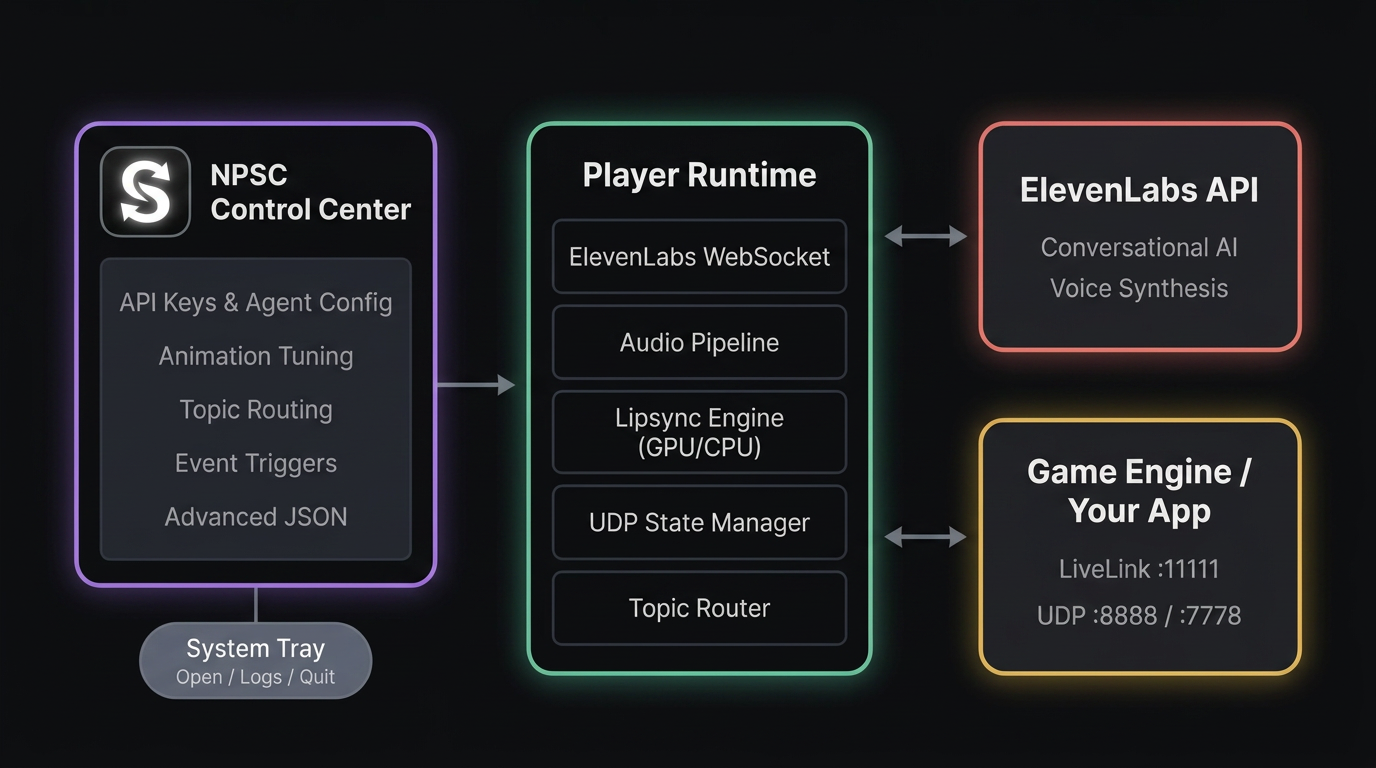
Runs in the system tray. Open the Control Center from the tray to configure and manage services.
Set API keys, runtime options, and trigger rules from the Control Center.
Use JSON advanced mode when you need technical control.
Requirements
- Operating system: Windows 10 or later (64-bit).
- GPU: NVIDIA GPU with CUDA support strongly recommended. The lipsync engine uses a Wav2Vec2 feature backbone (PyTorch + Transformers) and ONNX Runtime inference. GPU acceleration is automatic when a CUDA-capable GPU is detected. CPU fallback is seamless but may introduce latency during real-time streaming. CUDA 12.x and cuDNN are bundled.
- VRAM: 2 GB minimum if using GPU. 4 GB+ recommended for comfortable headroom alongside Unreal Engine.
- Microphone: Any input device recognized by Windows.
- Internet: Required for ElevenLabs API and first-run dependency installation.
- Disk space: ~6 GB after full setup (Python, PyTorch, Transformers, ONNX runtime, ffmpeg, models, and dependencies).
- Ports: UDP ports 7778, 8888, 8889, 11111 must be available locally.
- ElevenLabs account: An API key and a Conversational AI agent on elevenlabs.io.
Installation
- Run
NPSC Setup (Standard Edition).exeorNPSC Setup (Advanced Edition).exe. - Select your install location.
- Finish setup and launch NPSC.
First run
- Open
NPSC.exefrom Start Menu or Desktop shortcut. - If prompted, allow the first-run setup to install dependencies.
- Use the tray icon to open the Control Center.
LiveLink setup
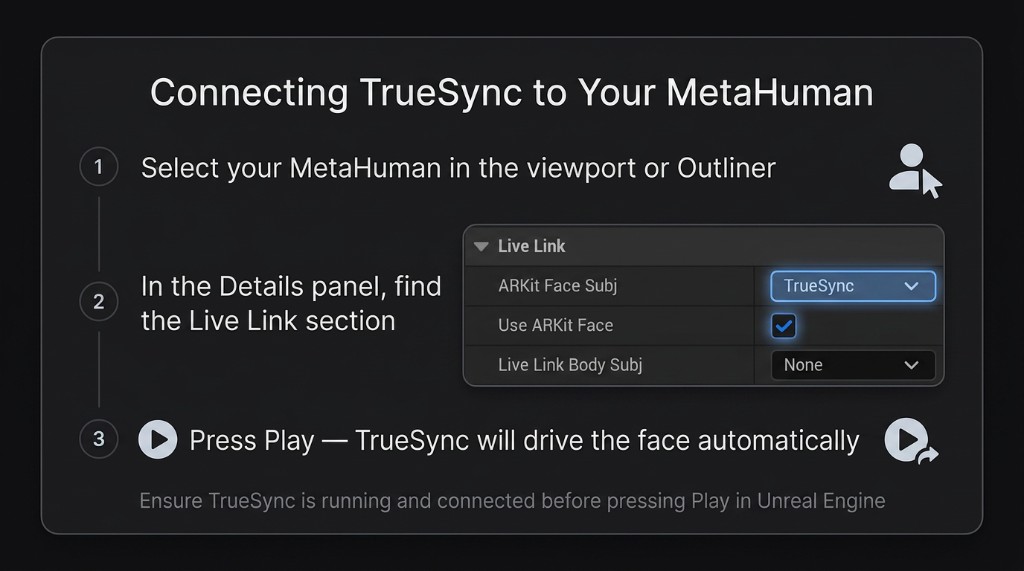
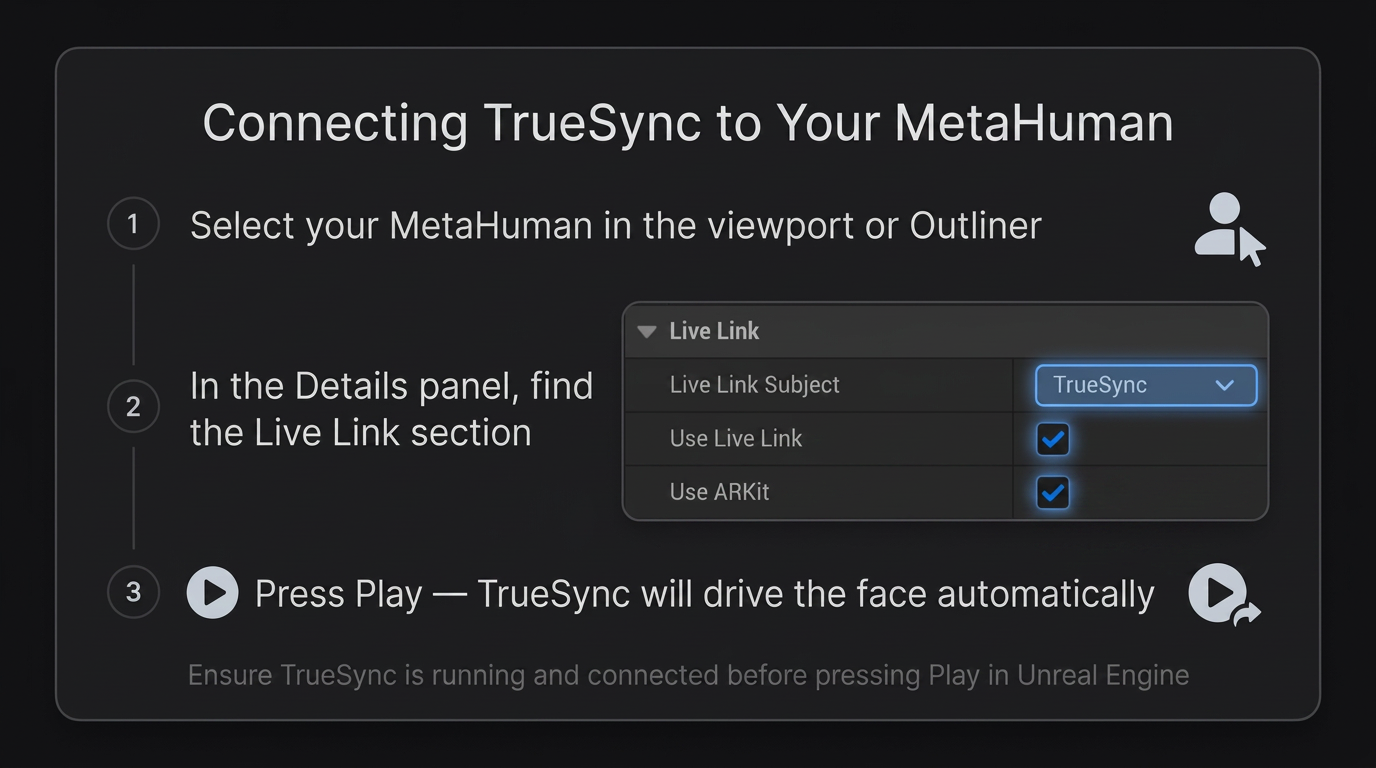
NPSC streams ARKit-compatible blendshapes over LiveLink at ~60 Hz. It is built and tested with Unreal Engine 5 MetaHumans, but any engine or application that consumes ARKit blendshapes can receive the data.
Control Center
The Control Center is the primary place to manage runtime settings. All fields auto-fill with their current values.
- Connection tab: API key, agent identity, language defaults, face API endpoint, state receiver settings, and external app UDP settings.
- Animation & Routing tab: Keyboard shortcuts, face animation tuning, topic tool routing, and event triggers.
- Logs tab: Live log output from running services.
- Advanced tab: JSON overrides for any internal parameter (UPPER_CASE keys only).
ElevenLabs agent setup
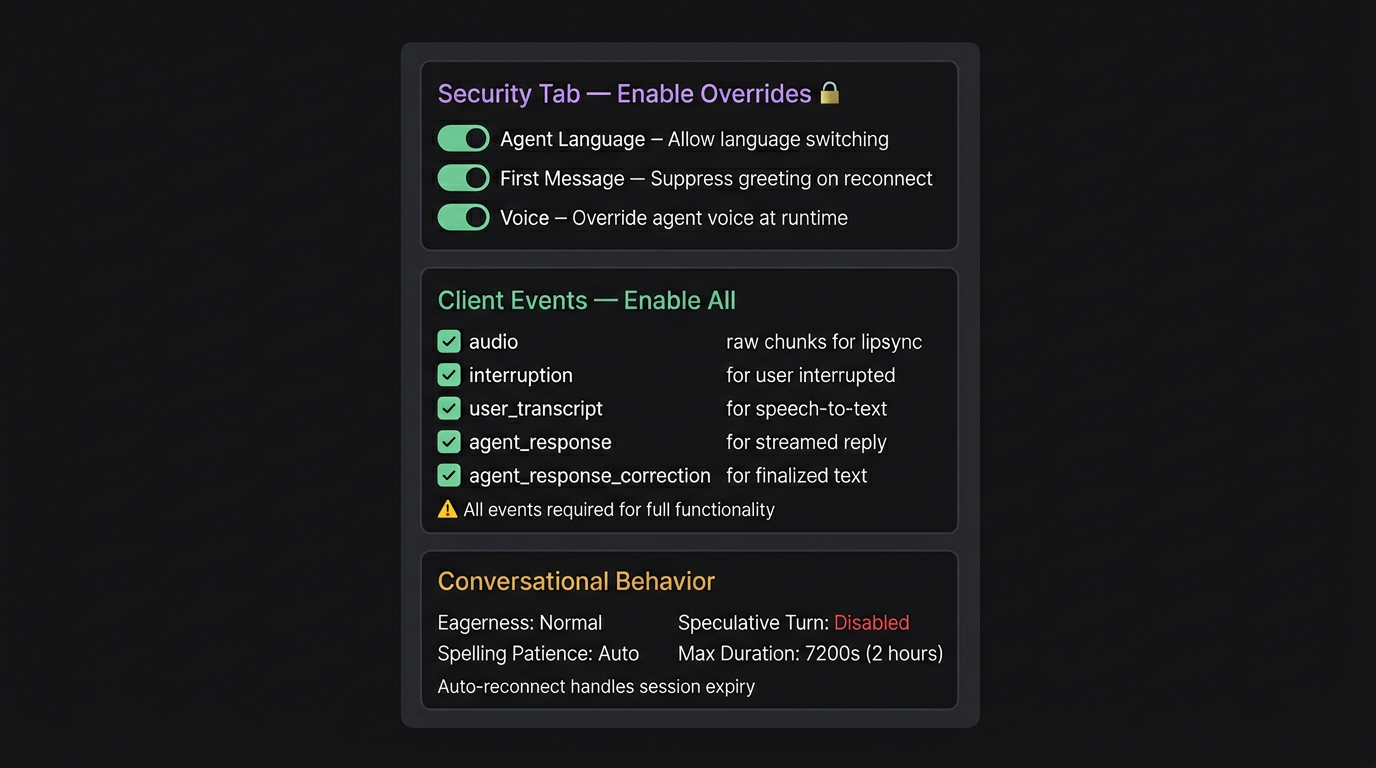
Save your API key and Agent ID on the Connection tab. NPSC talks to ElevenLabs for you and configures the agent automatically so you never have to touch the dashboard. Your prompt, voice, tools, and first-message text stay exactly as you set them.
Keyboard shortcuts
Active while the agent player is running. Defaults shown below.
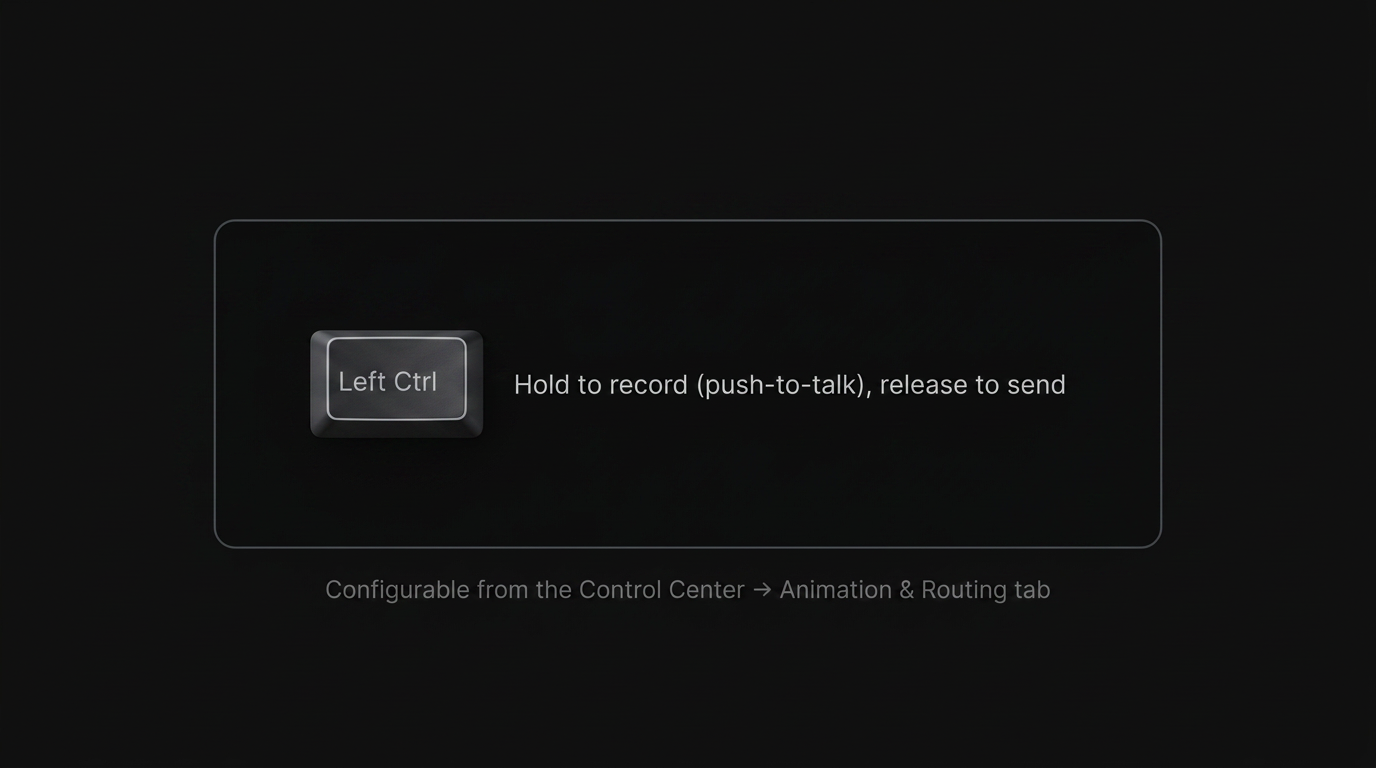
keyboard library format (e.g. "Left Ctrl", "space", "caps lock").
Language switching is available via the flag picker in the log panel, UDP commands, or by enabling auto-detect.
Advanced mode
The Advanced tab accepts raw JSON overrides for any internal parameter not exposed in the regular UI.
Topic tool routing
If your ElevenLabs agent has a client tool that outputs a topic name, NPSC forwards it to your app via UDP.
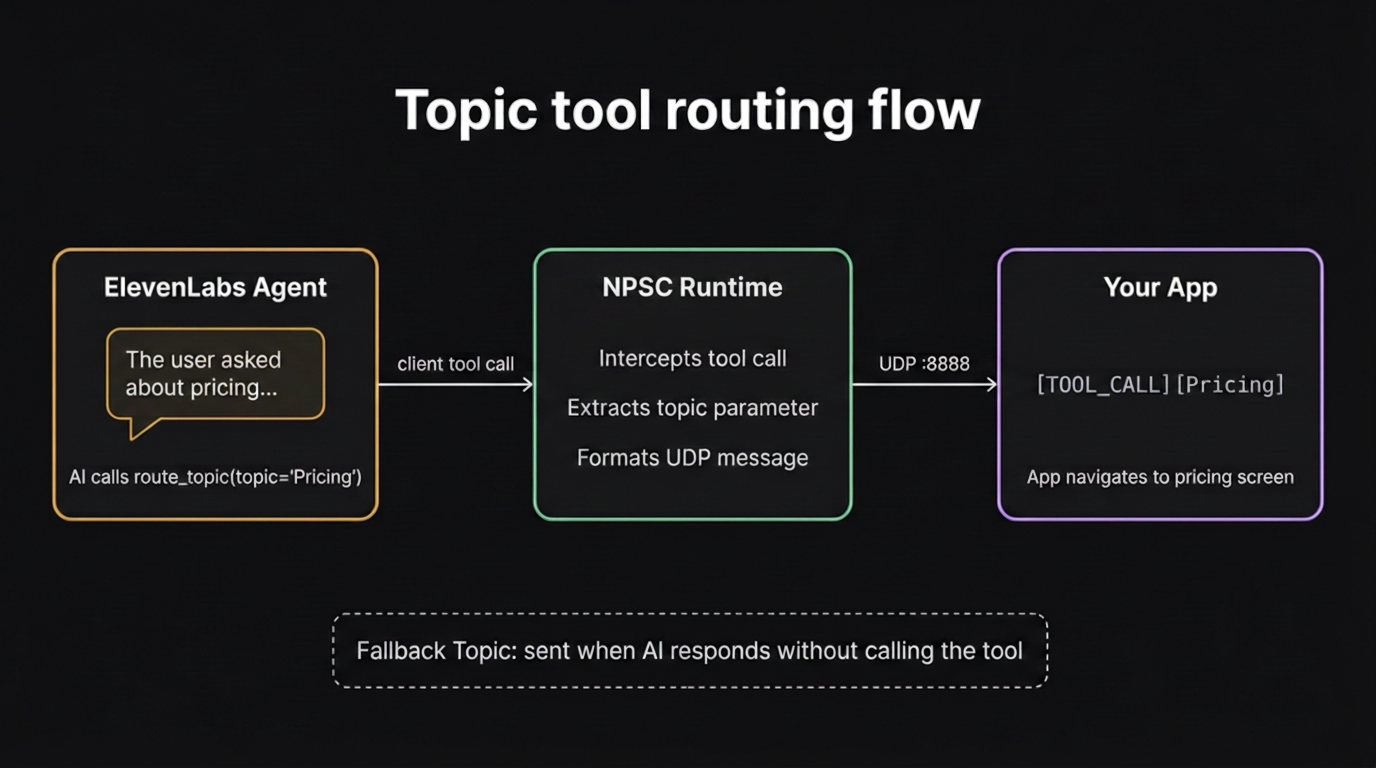
- Add a client tool to your agent (e.g.
route_topic) with a string parameter (e.g.topic). - Define the possible values in your tool description.
- When the AI calls
route_topic(topic="Pricing"), NPSC sends[TOOL_CALL][Pricing]to your app.
Optional: set a Fallback Topic for when the AI responds without calling the tool.
UDP protocol reference
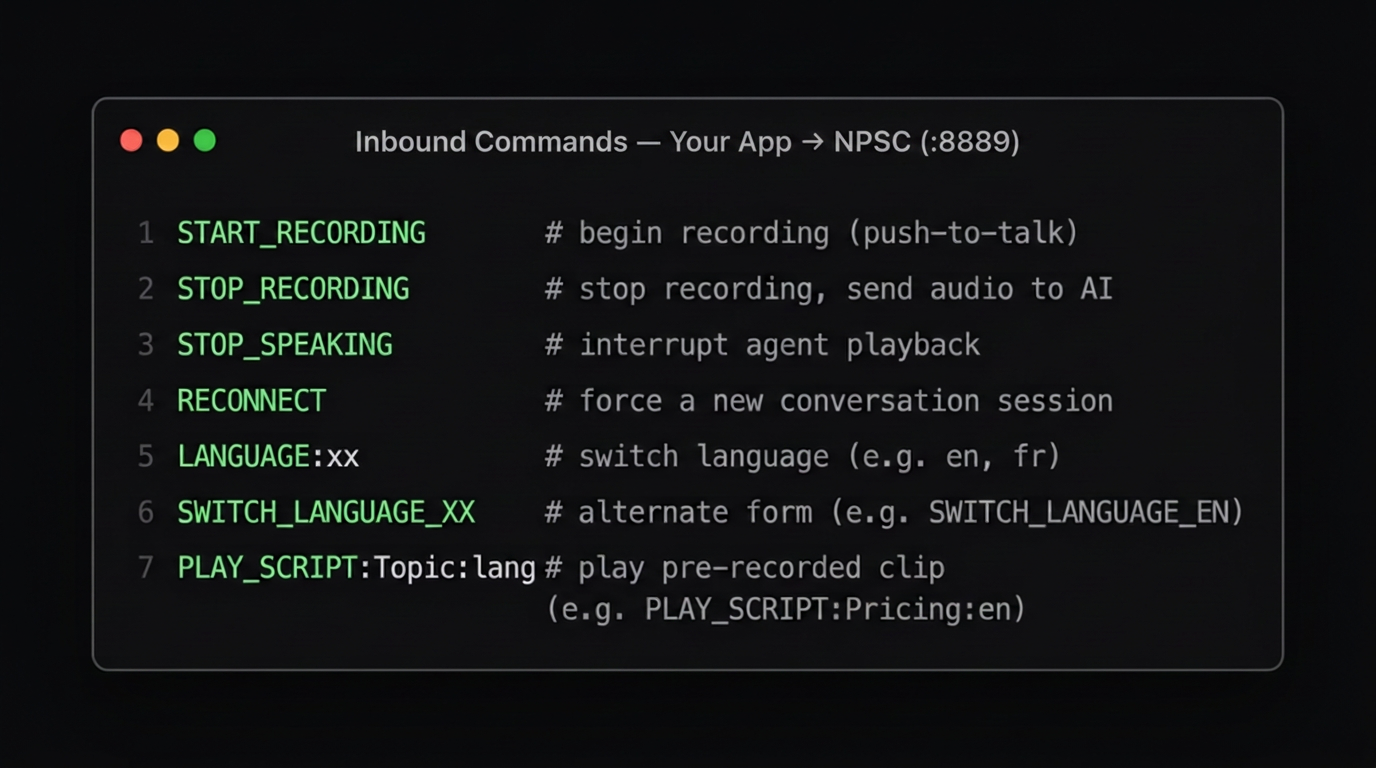
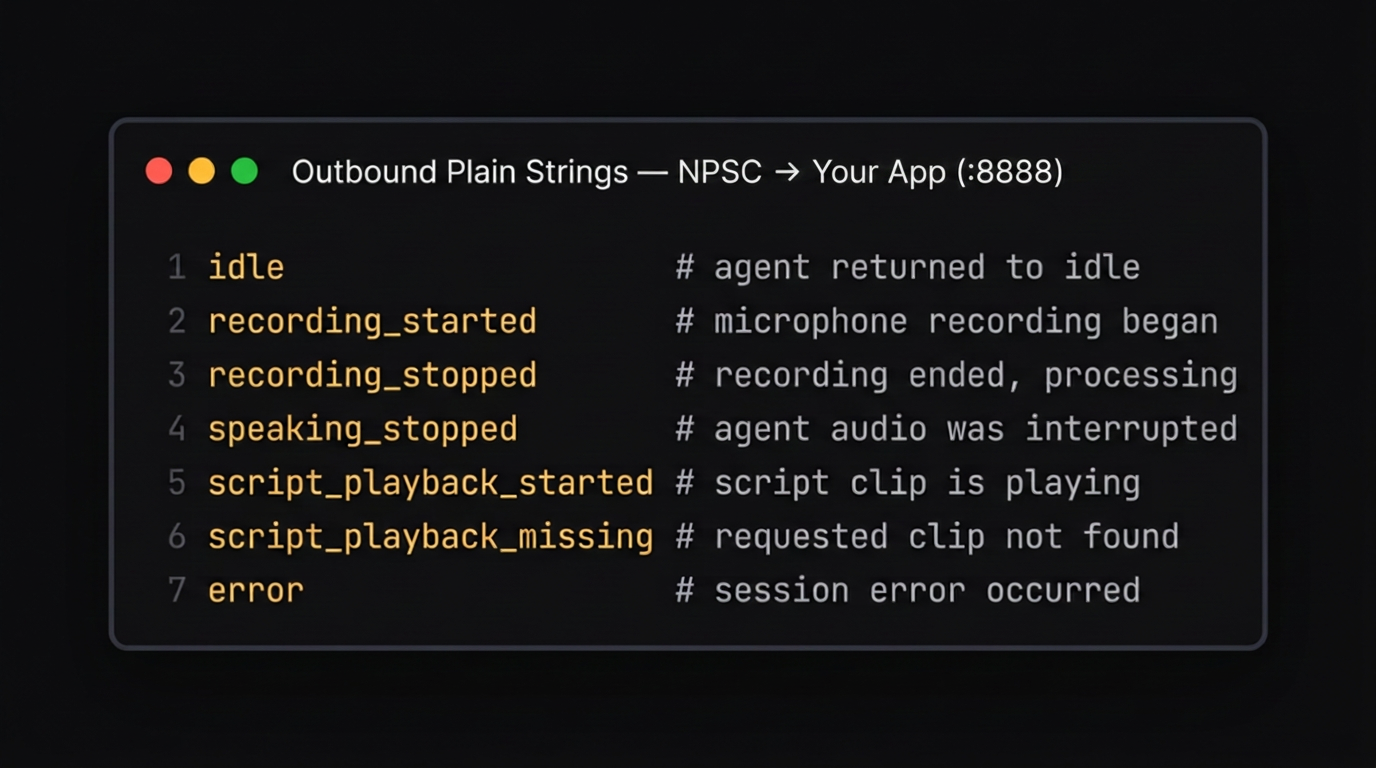
Two-way: your app sends commands to NPSC, and NPSC sends events and data back.
Inbound commands
Outbound plain strings
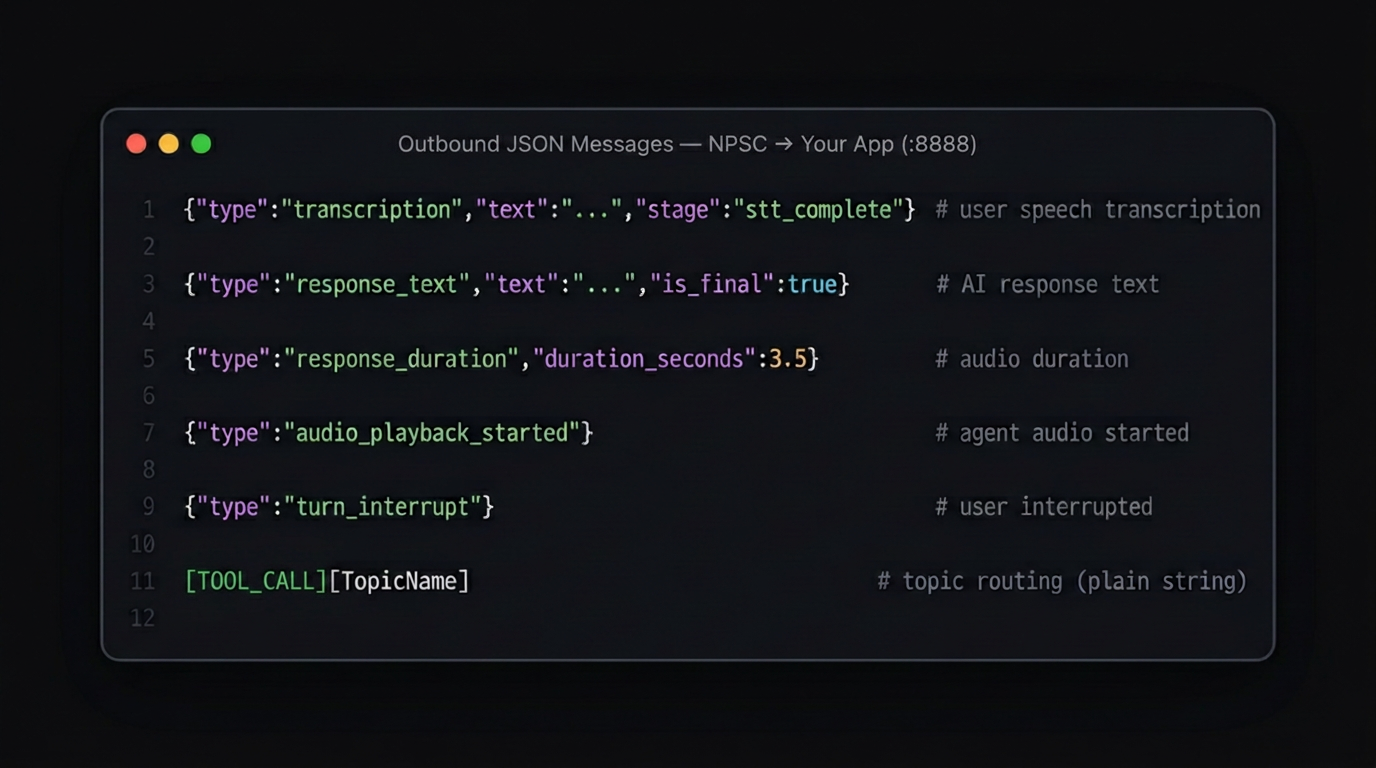
Outbound JSON messages
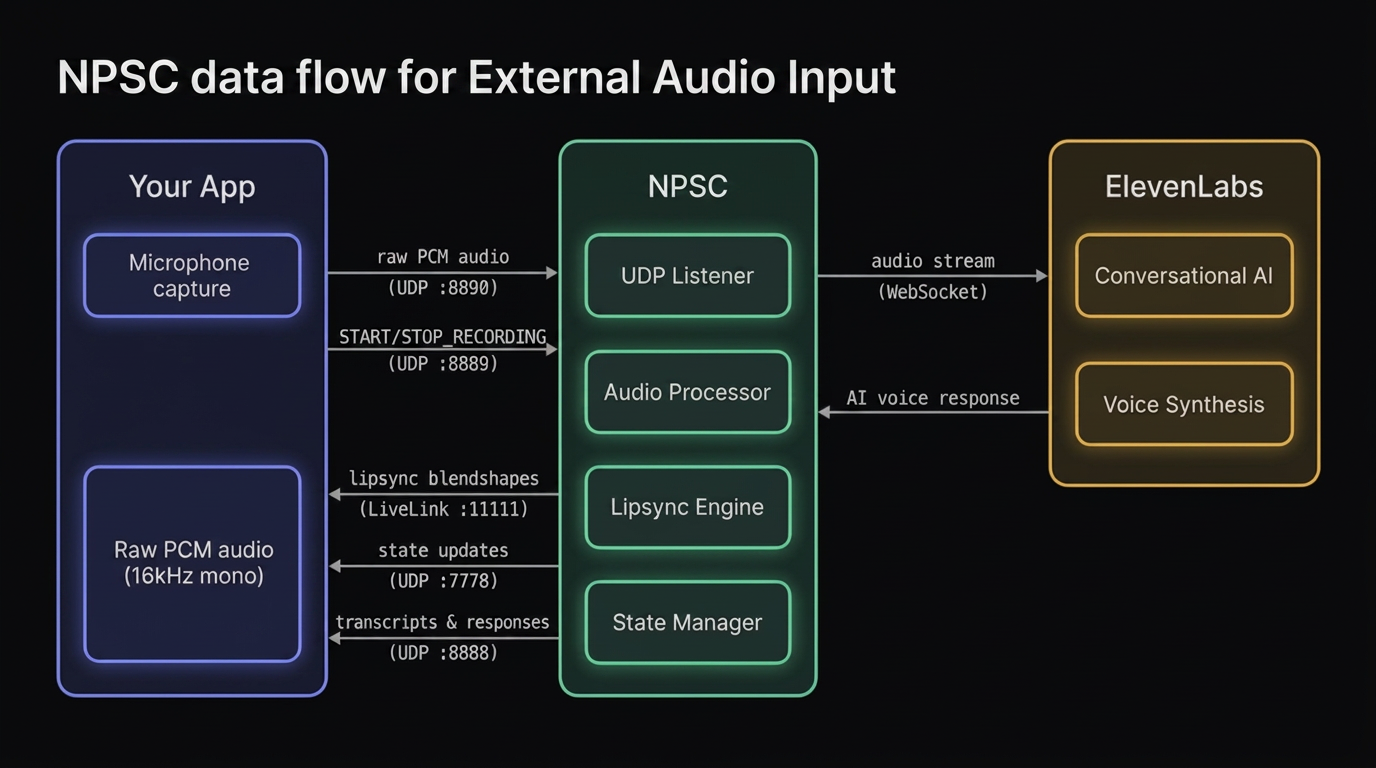
LiveLink (port 11111) Binary blendshape packets at ~60 Hz (ARKit 52 blendshapes).
turn_id and language fields when those features are active.
External audio input
When your app handles microphone access, enable External Audio Input mode. NPSC receives raw PCM audio over UDP instead of using the local mic.
Audio format
16,000 Hz
1 (mono)
16-bit signed int, little-endian
Up to 65,535 bytes (recommended: 1,600 bytes / 50 ms)
Configuration
Enable "External audio input" in the Connection tab and set the Audio Input Port (default: 8890).
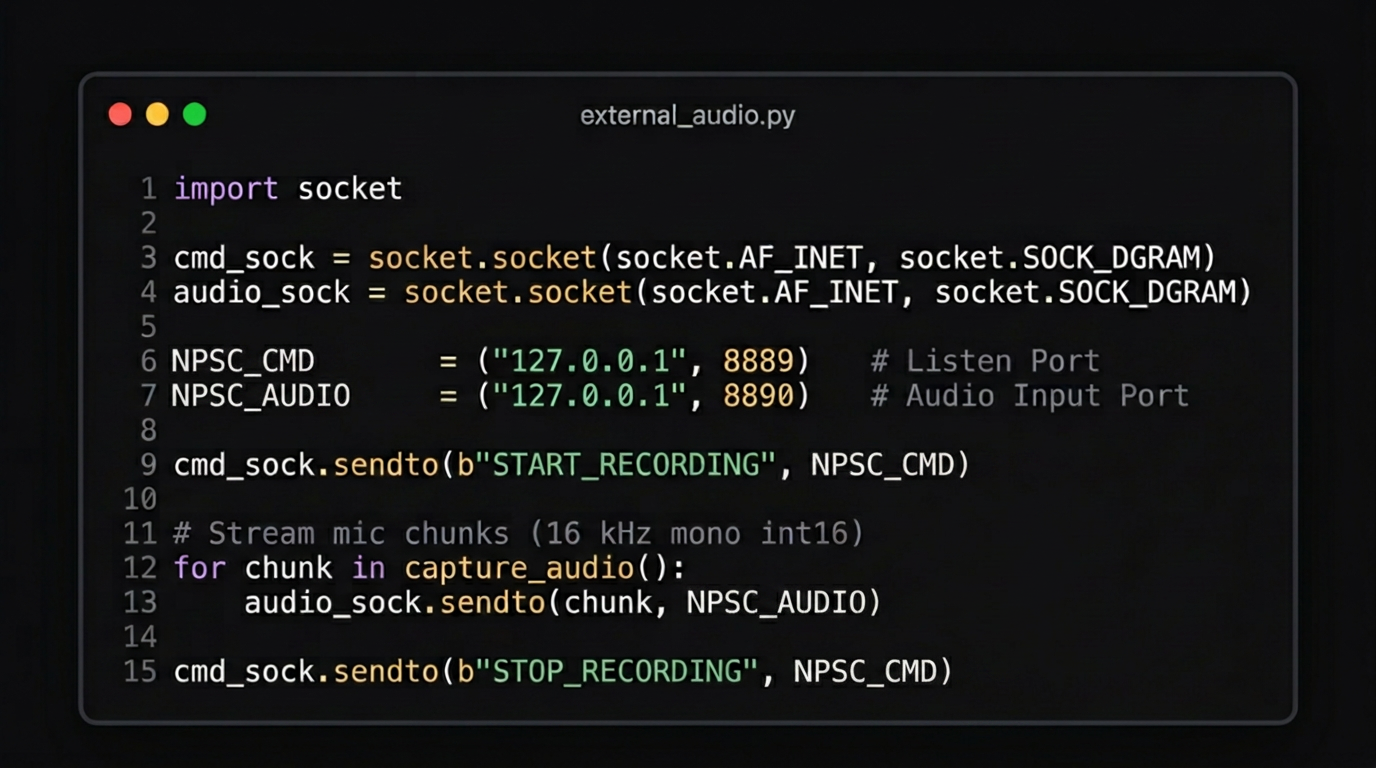
Integration flow
- Send
START_RECORDINGon the command port (8889) - Stream raw PCM datagrams to the audio port (8890)
- Send
STOP_RECORDINGwhen done
Python example
Event triggers
Optional UDP messages sent at specific lifecycle moments to your app's send port.
eventwhen the trigger fires (on_start,on_stop)actionthe operation to perform (send_udp)valuethe message payload
Custom audio assets
NPSC includes a user-editable audio system for timeout phrases and pre-recorded script clips. Drop your WAV files into the folder structure below and configure in _core/runtime/player/user_editable/runtime_audio_manifest.py.
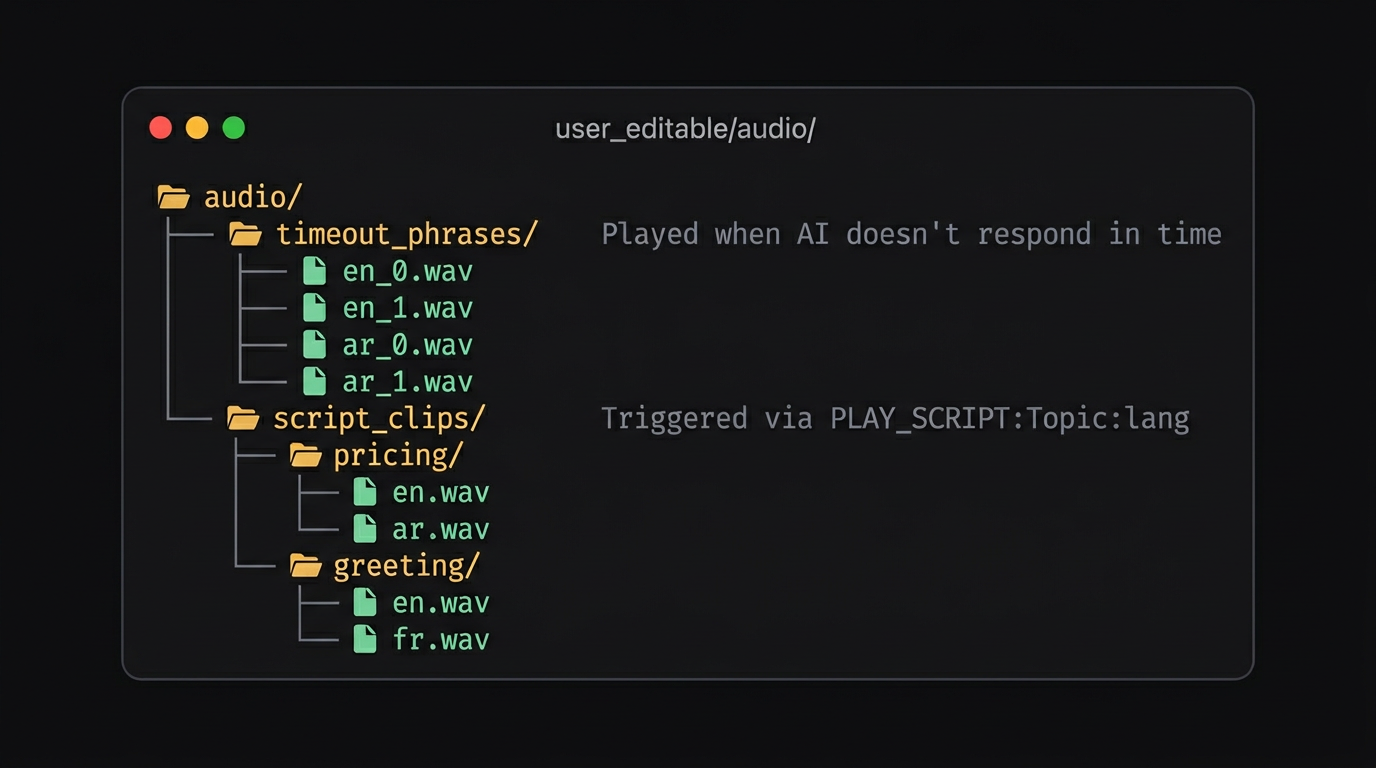
Set ENABLE_TIMEOUT_PHRASES = True. Naming: <lang>_<index>.wav
Set ENABLE_SCRIPT_CLIPS = True. Trigger via PLAY_SCRIPT:Topic:lang
_core/runtime/player/user_editable/ folder is yours to modify. Changes don't require reinstalling, just restart services.
Editions
NPSC is available in two editions:
Pre-compiled runtime for performance and security. Configuration through the Control Center GUI and editable config files. Source code is not included.
Full Python source code included inside the hidden _core/ folder. Enable "Show hidden items" in Explorer to access it. Inspect, modify, and extend the runtime.
Troubleshooting
- Open logs from the tray menu, then
Open Logs Folder. - If startup fails, re-run
NPSC.exeto retry runtime setup. - Confirm your ElevenLabs API key and agent ID are valid.
- GPU issues? NPSC detects and uses GPU automatically. If unavailable, it runs on CPU seamlessly.
Support
For questions, issues, or feedback, use the support channel provided with your purchase or reach out by email.